How to use Agento Desktop, section by section.
New here? Install first: Installation.
The window
Section titled “The window”Agento is one window with four parts.
┌──────────────────────────────────────────────────────┐│ titlebar: back, forward, sidebar toggle │├─────────┬────────────────────────────────────────────┤│ sidebar │ toolbar ││ ├──────────┬──────────────────┬──────────────┤│ sections│ list │ detail │ inspector │├─────────┴──────────┴──────────────────┴──────────────┤│ status bar: running agents, model, today's spend │└──────────────────────────────────────────────────────┘- Sidebar: the sections of the app.
Ctrl Bhides it. - List: what is in the current section. Search and filters sit above it.
- Detail: the thing you selected.
- Inspector: facts and figures about that thing.
Ctrl Ihides it. - Status bar: always live. Running agents, the active model, today’s tokens and spend, and connection state.
Drag the thin lines between panes to resize them. The app remembers your window size and position between launches.
Getting around fast
Section titled “Getting around fast”Press Ctrl K (or ⌘K) for the command palette. Type a few letters of what you
want and press Enter. It reaches every section and the common actions.
| Shortcut | Action |
|---|---|
Ctrl K |
Command palette |
Ctrl N |
New chat |
Ctrl , |
Settings |
Ctrl B |
Sidebar |
Ctrl I |
Inspector |
Ctrl [ / Ctrl ] |
Back / forward |
Ctrl 1 to Ctrl 7 |
Jump to a section |
On macOS use ⌘ instead of Ctrl, and the menu bar carries the same actions.
A chat is a conversation with an agent, kept for as long as you want it.
Start one: press Ctrl N or click the + above the chat list. Set up how the
conversation should run, then type your first message. The chat is created when
you send.
| Setting | What it does |
|---|---|
| Agent | Which saved agent to talk to, or none for a direct chat. Hidden until you have created one |
| Model | Sonnet, Opus or Haiku. Locked when the agent already names one, because the agent’s wins |
| Permissions | How much this conversation may do without asking. See below |
| Settings | Which Claude settings profile to run under, if you have more than one |
| Working directory | Required. The folder the agent can see and act in |
The working directory matters. It is the folder the agent can see and act in, the
same way claude behaves when you run it from that folder. Browse… opens your
system’s file picker, falling back to a built-in one if that is unavailable.
A chat or task that reaches Agento with no working directory — one created through the API, a scheduled task that names none, a Slack or Telegram rule left on agent default — runs in the Settings → General working directory, not in whatever folder Agento itself was started from. The Chats list shows that folder for such a chat. Conversations that already ran somewhere else keep their place in History; only new runs change.
Your choices are remembered and filled in next time you start a chat. They start from Settings → General the first time.
The model and permission mode can be changed on an existing chat from the two dropdowns in the composer strip. The change applies from your next message, and both are locked while a turn is running. A chat with an agent always runs the agent’s model, so there the model is shown locked, marked from agent.
Replies are rendered as markdown — headings, lists, tables, links and code blocks. Hover a message for a copy button, and any code block for its own. Copying a message gives you the markdown source, which is what you want when it is going into an issue or a commit message.
While a turn is running:
- The reply streams in as it is produced.
- Tool calls appear inline, with the input and the result.
- If the agent needs permission for a tool, a prompt appears. Approve or deny. Chats set to Never ask skip this.
- If the agent asks you a question, answer it in the composer and the run continues.
- Stop halts the run. Anything already written stays.
Queueing your next message. The composer stays open while a turn runs. Press ⌘↵ (Ctrl+↵) or Queue and the draft becomes a card above the input, ready for the next one. Click a card to edit it (↵ saves, Esc cancels, an empty card is removed), × removes it, ⌥↑ / ⌥↓ on a card moves it, and ↑ in an empty input opens the last card.
- When the turn finishes, every queued card is sent as one message, in order, with a blank line between them.
- Stop keeps the queue and sends nothing. The send button then reads Send N queued, and sends the queue plus whatever you have typed.
- If the turn fails, the queue is sent once automatically. If that fails as well, the cards come back and wait for you.
- The send icon on a card, or ⌘⇧↵ from the input, stops the agent and sends that one message straight away.
- Permission prompts and the agent’s questions are answered as before; they never go through the queue.
- A queue belongs to its conversation and lives only until the app closes. Only one conversation runs at a time, so a queue in another chat waits its turn and is sent when the running one finishes — except a queue you stopped, or one that came back after a failed resend, which waits for you to send it (or to queue something more into it).
The inspector shows the agent, the model, the permission mode, the message count and the token usage of the whole conversation, split into input, output, cache read and cache write, with the cost.
Rename a chat from the title, or delete it from the toolbar. Deleting removes its messages too.
One thing worth knowing: a turn that produced no final answer, for example one you stopped immediately, stores nothing. That is the same rule Claude Code follows.
Permissions, per conversation
Section titled “Permissions, per conversation”The Permissions setting decides how much this chat may do on its own:
| Choice | Behaviour |
|---|---|
| Agent default | Use whatever the agent is configured for, or ask if it has no preference |
| Ask before acting | Prompt in the transcript before every tool call |
| Never ask | Run tools without prompting. For work you have already decided to trust |
| Plan only | Propose a plan without acting on it |
| Don’t ask | Claude Code’s dontAsk mode |
It applies to that conversation alone and does not change the agent. A tool the agent does not list is still denied without asking, whatever you pick here — the allowlist is enforced separately.
Agents
Section titled “Agents”An agent is a saved configuration you can reuse from chats, scheduled tasks and the command palette.
Fields:
| Field | What it does |
|---|---|
| Name and slug | The slug identifies it in the API and the CLI. It is filled in for you |
| Description | For you, not for the model |
| Model | Sonnet, Opus or Haiku. Leave empty to use the Claude Code default |
| Thinking | Adaptive, always on, or disabled. Controls extended reasoning |
| Permission mode | How much an unattended run may do without asking. See below |
| System prompt | The agent’s instructions |
| Claude config dir | Run this agent as a different Claude Code account. Browse… picks one |
| Tools | Exactly what this agent is allowed to use |
Permissions
Section titled “Permissions”One rule holds everywhere, whatever anything is set to:
- A tool the agent does not list is denied without asking. The allowlist is enforced independently of every permission mode.
Beyond that, who decides depends on whether anyone is watching:
- In a chat, the conversation decides. Each chat carries its own permission mode, chosen when you start it — see Permissions, per conversation. Left at Agent default it falls back to the agent’s, and to asking you if the agent has no preference.
- In an unattended run, the agent’s permission mode field decides, and what happens when it is unset depends on who started the run. A scheduled task, or one you start with Run now, proceeds without prompting, because the alternative is a task that hangs until it times out. A run started by a Slack or Telegram message never prompts either, but it denies what it would have asked about instead of going ahead. That limits an agent to the tools it lists. An agent that lists no tools is allowed every built-in one, including shell commands and file writes, so give the agent an explicit tool list if a message-started run should be held to less. Set the rule’s permission mode to Bypass if it should not be held back at all.
Known limitation: the permission mode you pick on an agent is not currently saved. The underlying API drops the field, and the desktop app reproduces the server’s behaviour rather than diverging from it. This does not affect chats, which store their own mode. For agents, rely on the tool allowlist and the working directory to bound what a run can do.
Tools are an allowlist. An agent can use only what you tick.
- Built-in tools: the Claude Code tools, such as reading and writing files, running commands and searching.
- Local tools: small helpers Agento serves itself.
- Integration tools: individual tools from the integrations you have connected, for example “send a Slack message” or “create a GitHub issue”.
External MCP servers (mcps.yaml)
Section titled “External MCP servers (mcps.yaml)”There is no screen for this one. If a file called mcps.yaml exists in Agento’s
data directory (~/.agento, or ~/.agento-desktop-dev for a development
build), Agento reads it and any server it names can be used by an agent — under
whatever name you gave it, which is also the name you put in that agent’s
capabilities.mcp. Set AGENTO_MCPS_FILE to read it from somewhere else.
docs-mcp:  transport: stdio            # or: streamable_http, sse  command: /usr/local/bin/docs-mcp  args: ["--root", "/srv/docs"]  env:    API_TOKEN: "${ENV:DOCS_TOKEN}"   # taken from Agento's own environment
weather:  transport: streamable_http  url: https://weather.example/mcp  headers:    Authorization: "Bearer ${ENV:WEATHER_TOKEN}"
Three things worth knowing before you write one:
- A server here is a program Agento does not control. A
stdioentry is a command the Claude Code CLI launches with your user account and your environment; anhttp/sseentry is a URL it calls. Agento passes the entry along and nothing more — it does not sandbox, supervise or restart it. Only put things there you would run yourself. - A name in this file wins over an integration with the same id, so you can deliberately point an agent at your own server instead of the built-in one.
- A broken file stops every agent that names any MCP server — not only the
ones with an entry in it — because the file is read whenever an agent’s tools
have to be resolved. An unknown
transport, YAML that will not parse, or a${ENV:…}variable that is unset or empty makes those chats answer an error naming the problem, rather than quietly running without the tools they asked for. Agents that name no MCP server are unaffected, and so is an empty or absent file.
Template variables
Section titled “Template variables”System prompts support {{current_date}} and {{current_time}}, filled in at the
moment the agent runs. Useful for scheduled tasks that need to know what day it is.
Running as another Claude account
Section titled “Running as another Claude account”Set Claude config dir on an agent to point at a different Claude Code configuration directory. That is how a work agent and a personal agent can run in one copy of Agento, each authenticated as its own account.
Integrations
Section titled “Integrations”Integrations connect an outside service and expose it to your agents as tools.
Available in the desktop app:
| Service | What agents can do |
|---|---|
| Calendar events, Gmail, Drive files | |
| Slack | List channels, read and send messages, search, and trigger agents from mentions |
| GitHub | Repositories, issues, pull requests, actions, releases |
| Telegram | Send messages, and trigger agents from incoming ones |
| Jira | Search, create, update and transition issues |
| Confluence | Read, search, create and update pages |
To connect one: open Integrations and pick a service under Add integration, then fill in the form. Google uses OAuth, so a browser window opens and you approve access there. Slack offers both OAuth and a bot token you paste in; GitHub, Telegram, Jira and Confluence use a token you paste in.
For each integration you choose which services are enabled (for example Gmail but not Drive) and which tools within them. Agents then pick from what you enabled.
Editing credentials: when you change an integration that has stored credentials, Agento asks you to re-enter them rather than saving a blank. That is deliberate: saving a scrubbed form would wipe the working credential.
Telegram triggers
Section titled “Telegram triggers”A Telegram integration can also run agents on incoming messages. Add a trigger rule saying which messages match and which agent handles them. The agent’s reply goes back to the same chat.
Chat IDs is required. A rule answers only the chats it lists, by numeric id:
your own id for a private chat with the bot, or a group’s id, which is negative.
A message from any other chat starts nothing and gets no reply. To find an id,
message @userinfobot on Telegram, or add @RawDataBot to the group for a
moment.
A rule saved by an earlier version with no chat ids is turned off when Agento updates, and its row says so. Edit the rule, add the chats it should answer, and turn it back on.
A rule with no permission mode runs with prompts denied: anything the agent would have asked about is refused. Earlier versions ran such a rule with permission checks skipped, so a rule that relied on that needs Bypass chosen on it. An agent that lists no tools is still allowed every built-in one, including shell commands and file writes, so give the rule’s agent an explicit tool list to limit what a message can make it do.
The rule form has the same Task picker as a Slack rule’s. A Telegram message does not start the linked task yet: it still runs the rule’s own agent.
Telegram long polling
Section titled “Telegram long polling”Agento receives Telegram messages by asking Telegram for them over an outbound connection, called long polling. It needs no public URL, no tunnel and no inbound firewall rule.
- Store the bot token on the integration and save.
- Turn on Inbound → Long polling. The badge beside it reads
CONNECTING, thenCONNECTEDwithin a second or two. - Add at least one trigger rule. With no rules, messages are received and ignored.
Turning it on removes any webhook registered for the bot, because Telegram does not deliver to a webhook and a poll at once. Messages sent while Agento was closed are delivered when it next starts, as long as Telegram still holds them (about a day).
A Telegram trigger that already worked through a webhook in an earlier version is switched to long polling when you upgrade, and needs nothing from you.
Only one program can poll a bot at a time. If the badge reads ERROR and names
a second poller, see
Troubleshooting.
Turning Long polling off stops receiving immediately and nothing is deleted.
Slack Socket Mode
Section titled “Slack Socket Mode”A Slack integration can also run agents on mentions of the app in a channel. Agento holds an outbound websocket to Slack — Socket Mode — so this works from a desktop machine with no public URL and no inbound firewall rule.
Before anything else, read Who can run an agent this way. A channel you switch this on for is an execution surface.
Create the Slack app from this manifest
Section titled “Create the Slack app from this manifest”At https://api.slack.com/apps choose Create New App → From an app manifest, pick your workspace, and paste this:
display_information: name: Agento description: Runs an Agento agent when you mention it in a channel.settings: socket_mode_enabled: true event_subscriptions: bot_events: # The one event Agento listens for. Nothing else is subscribed, and # anything else Slack sends is dropped without being looked at. - app_mention interactivity: is_enabled: falsefeatures: bot_user: display_name: Agento always_online: falseoauth_config: scopes: bot: # Delivers the app_mention event itself. - app_mentions:read # Posts the agent's answer back into the thread. - chat:write # Reads the channel's name, used to title the chat. Use groups:read # instead if the channel is private. - channels:read # Lists the workspace's members, so a rule's Allowed users can be # picked by name. - users:readThat is what Socket Mode and its rule form use, and nothing more. The same integration also gives your agents seven Slack tools, and most of them need scopes this manifest does not grant. Add what you want:
read_messagesneedschannels:history, andgroups:historyas well for a private channel.list_usersneedsusers:read, which the manifest above grants already.get_channel_inforeaches a private channel only withgroups:read.list_channelsneedsgroups:readoutright, not only for the private half: it asks Slack for public and private channels together, so without it the tool fails rather than returning the public ones.
One you cannot add: search_messages needs search:read, which Slack grants
only to a user token, not to a bot.
Then:
- Install to Workspace (under Install App), and copy the Bot User OAuth
Token — it starts
xoxb-. - Under Basic Information → App-Level Tokens, create a token with the
connections:writescope and copy it — it startsxapp-. This is a different token from the one above, and Socket Mode cannot open a connection without it. - In Agento, open Integrations → Slack, choose the Bot token auth mode,
paste the
xoxb-token into Bot token and thexapp-token into App token, and save. It has to be the Bot token mode: Agento’s OAuth install never asks forapp_mentions:read, so an OAuth row connects perfectly happily and is then sent nothing. - Turn on Inbound → Socket Mode. The badge beside it reads
CONNECTINGand thenCONNECTED. - In Slack, invite the app to the channel —
/invite @Agento. Slack does not deliverapp_mentionfrom a channel the app is not in. - Add a trigger rule on the same integration: which agent runs, which channels it answers in, and which Allowed users it answers. Leave the channel list blank to answer in every channel the app is in. At least one allowed user is required, yourself included: search the workspace’s members by name and tick each one (see Who can run an agent this way). To start a scheduled task instead of the agent, pick it under Task (see A rule that starts a task).
Now @Agento what changed in this repo today? in that channel starts a run, and
the answer arrives as a threaded reply.
One Slack thread is one chat
Section titled “One Slack thread is one chat”The first mention starts a chat; every later mention in that thread continues
the same one, so the agent keeps its context. The chat appears in Chats with
a SLACK badge and a Started from row, which links back to the thread when
Slack gave Agento a permalink for it and names the channel id alone when it did
not.
A mention in a thread Agento did not start is ignored — it is somebody else’s conversation, and joining it uninvited is worse than staying quiet.
A rule that starts a task
Section titled “A rule that starts a task”A rule can name a scheduled task instead of running its own agent. A mention that opens a thread then starts one run of that task: the task’s own instructions are the prompt, what was said is handed to it as data, and the run is recorded in Job history like any other. The rule’s agent, model and permission mode are not used for it. A run started this way does not skip permission checks the way a scheduled run of the same task does: anything the task’s agent would have asked about is denied. An agent that lists no tools, and a task with no agent, is still allowed every built-in tool, including shell commands and file writes.
The task answers in the thread only if it has a Reply to sender destination (see Delivery under Tasks). Without one the task still runs and is recorded, and nothing is posted in Slack. A paused task is not run and says nothing. Later mentions in the same thread continue that run’s chat, as in any other thread.
A task limits how often messages can start it. Each task runs one message-started run at a time, keeps up to five more messages waiting in the order they arrived, and starts at most ten such runs in any hour. A message that arrives when the queue is full, or after the hour’s ten, starts nothing and gets no reply; the task counts it. These limits apply only to runs a message starts, not to the task’s schedule or to Run now. Change them in the task form’s Limits section; the task’s inspector shows its counts of dropped and rate-limited messages (see Scheduled tasks).
Link a rule in its form: the Task picker lists every task, and No task
unlinks it. The rule’s row then reads → task: <name> instead of → <agent>.
A row marked paused names a task that is paused, and the form says a matching
message starts nothing. A row marked missing names a task that was deleted:
the rule can still be edited and switched off, and the form asks you to choose
another task or No task.
It only goes one way
Section titled “It only goes one way”Slack drives the chat; the chat does not drive Slack. Turns you take in the Agento window on a Slack-started chat are not mirrored back to the thread, and nothing you do in Slack is affected by the window being open. If you want the thread to see an answer, ask in the thread.
Who can run an agent this way
Section titled “Who can run an agent this way”Only the users a rule lists can run it. A Slack rule has an Allowed users list of Slack user ids, and a rule cannot be turned on while the list is empty. A mention from anyone else starts nothing and gets no reply, in a thread Agento started as much as anywhere else.
The rule form lists the workspace’s members: search by name or handle and tick
the people the rule should answer. Bots, deactivated accounts and Slackbot are
not listed. Listing members needs the users:read scope, which the manifest
above grants; an app installed without it shows the Slack app needs
users:read and falls back to typing comma-separated member ids. Add the scope
under OAuth & Permissions and reinstall the app to get the list.
A member id still works everywhere: paste one into the search box and choose
Add. To find an id, open the person’s Slack profile, choose More, then
Copy member ID; it looks like U0123ABCDEF. A saved id the list does not
show, such as a deactivated account, stays on the rule as
U0123ABCDEF (not in list) until you remove it.
A listed user runs the rule’s agent with the rule’s permission mode, in the rule’s working directory, on your machine, as you. So list only people you would grant a shell to.
A rule saved by an earlier version has no allowed users, so it stops answering when Agento updates, and its row says No allowed users, not responding. Edit the rule and add the users it should answer.
When the rule starts a task, each mention it refused from an unlisted user is counted on that task. A rule with no task does not count them.
The Prefix and Keywords on a rule narrow which messages from an allowed user start a run. They are not a safety measure: who may run the rule is the user list, and where is the channel list.
Beyond the user list:
- Name the channels explicitly in the rule rather than leaving the list blank, and make them channels whose membership you would grant a shell to.
- Set the rule’s permission mode and working directory deliberately. A rule left on a permissive mode in your home directory is a rule that lets a channel member read and change anything you can. A rule with no permission mode runs with prompts denied: anything the agent would have asked about is refused. Earlier versions ran such a rule with permission checks skipped, so a rule that relied on that needs Bypass chosen on it.
- Give the rule’s agent an explicit tool list. An agent that lists no tools is allowed every built-in one, including shell commands and file writes, and prompts denied does not take those away.
- Remember that inviting the app to a new channel silently widens this when the rule’s channel list is blank.
Turning Socket Mode off closes the connection immediately and nothing is deleted; the tokens, the rules and the chats are all still there when you turn it back on.
If you paired WhatsApp in an older version
Section titled “If you paired WhatsApp in an older version”Agento does not support WhatsApp. An existing WhatsApp integration is still listed and its data is safe, but it cannot be edited or used.
Scheduled tasks
Section titled “Scheduled tasks”A scheduled task runs an agent on its own, on a schedule, and records what happened.
Create one with a name and the prompt sent verbatim on every run. The agent is optional: No agent is the default, and runs Claude Code with the default model (or the task’s own Model) and all built-in tools, no system prompt and no integrations, with permission prompts skipped when it runs on its schedule or from Run now. Pick an agent from the list instead to run with its model, tools, system prompt and integrations.
Schedules:
| Type | Meaning |
|---|---|
| Immediately | Run once, a couple of seconds from now |
| Once | Run once at a date and time you pick |
| Interval | Every N minutes, hours or days, optionally at a fixed time of day |
| Cron | A crontab expression, for anything more specific |
Other options:
- Working directory: the folder the run happens in. Browse… picks one.
- Model: the model a task with no agent runs on; leave it empty for the Settings default model, which the field shows. A task with an agent runs on that agent’s model.
- Timeout: runs longer than this are cancelled and recorded as failed.
- Save output: keep the agent’s reply in the run history.
- Stop after: No limit, or a Run limit of N runs.
- Stop at: No end date, or an End date. Switching back to No end date clears a date you already chose.
- Runs at once (1 to 3, normally 1), Events that can wait (1 to 100, normally 5) and Runs per hour (1 to 1000, normally 10): the limits on runs an event starts, such as a Slack or Telegram message. They do not limit the schedule or Run now. A value outside its range is refused, and the field says so.
- Enabled: pause without deleting.
The inspector’s Reliability group counts the events the task refused: Dropped events arrived when the waiting list was full, and Rate-limited events arrived after the hour’s runs were used up. Neither started a run, so neither has a row in the history.
Delivery
Section titled “Delivery”A task can also send each run’s output to Slack, Telegram or email. The Delivery section appears once a Slack or Telegram integration is enabled and connected (see Integrations) or an SMTP server is set up in Settings → Notifications, and on any task that already has a destination.
- + Add Slack destination adds a row: pick the Slack integration, tick the
Channels to post to (search by name), and choose When — On
success or Always. Remove takes a row off the task; nothing changes
until you save. A channel marked bot not in channel would refuse the post:
invite the app there with
/invitefirst. A saved channel Slack no longer shows (archived, deleted, or private without the bot) stays on the task asC0123ABCD (not found)until you remove it. Listing channels needs thechannels:readscope, andgroups:readas well — the list includes private channels. If the list cannot be loaded, the row falls back to typing comma-separated Channel IDs such asC0123ABCD. - Continue a run from Slack. Mention the app in the thread under a run’s
summary —
@agento dig into item 3— and the run’s own chat picks it up with its context, answering in the same thread. This needs Socket Mode on for the integration (see Slack Socket Mode) and a trigger rule covering the channel, whose prefix and keywords apply to the reply as to any mention. Only the first channel whose summary posted is linked; a mention in another channel’s thread is ignored. - + Add Telegram destination works the same way with Chat IDs: numeric
ids such as
123456789, or-1001234567890for a group or channel. Each chat gets a short header (task, status, duration) and then the output as plain text. The bot can only message a chat where someone has started it, or that it was added to; a channel’s@usernameis not accepted — use its numeric id. - + Add Email destination takes Recipients (comma-separated addresses)
and When. It is offered once an SMTP server is set up in Settings →
Notifications, and sends through that server as one message to every
recipient, so they see each other. The subject is
Agento Notification - <task>: Completed(orFailed), and the body is a short header followed by the full output. It is sent whether or not notifications are switched on, because adding the destination is the opt-in. - + Add Reply to sender destination has only When to choose. It answers the Telegram chat or Slack thread whose message started the run, with the run’s answer — or “Sorry, something went wrong.” for a failed run, never the error itself. A run nothing sent (a schedule or Run now) records it as skipped with this run was not started by a message. A task has at most one.
- The output is still kept in Agento as usual (subject to Save output); delivery sends a copy. Slack channels are shared, so everyone in them sees the output. Invite the bot to each channel, or Slack refuses the post.
- Closed, the header summarises it —
Delivery: Slack · 2 channels. A destination whose integration was deleted, disabled or disconnected stays on the task with a warning on its row and⚠in the header; it is never dropped.
Each run’s delivery results — sent, failed or skipped, with Slack’s or Telegram’s error — are in Job history, and a run whose delivery failed is marked in the task’s Recent runs.
The inspector shows the next run, the last run, the total number of runs and the last outcome.
Run now runs the task immediately, whatever its schedule says. It works on a paused task too, and on one that has already reached its Stop after count — that is the point of it, since a task you cannot try is a task you cannot fix. The run lands in Job history like any other, with its output, timing, tokens and any error.
A manual run does not touch the schedule: it does not move the next run, does not count towards Stop after, and never pauses the task. Only one run of a task happens at a time — pressing Run now while one is going says so and starts nothing.
Enable / Disable is the other button, and it is the one that decides whether the schedule fires at all. It does the same thing as the Enabled switch in the form below.
Times are your local time. They are stored in UTC and converted for display.
Agento has to be running. A scheduled task fires from the app itself, so nothing runs while it is closed.
Job history
Section titled “Job history”Every run leaves a record — scheduled or started with Run now — of which task, when it started, how long it took, whether it succeeded, the tokens and cost, and the output if you asked for it to be saved.
The Trigger column says what started each run: Schedule, Manual (Run
now), Telegram, Slack, Webhook or Reply. Searching for one of those
words finds its runs. A task’s Recent runs names the trigger too, for every
run the schedule did not start.
A run started by a message shows what was sent under Event payload, as plain text with a copy button. It is stored with secrets masked. A run that continues an earlier one has a Continues row that selects that run.
A run’s Overview also shows Task’s dropped events and Task’s rate-limited events. These are totals for the run’s task, not for that run, and they are left out when the task has been deleted.
Failed runs carry the reason. A run that hit its timeout says so. A run that delivered its output somewhere lists each channel under Delivery, with whether it was sent, failed or skipped, and why.
Select one run or several and delete them.
Claude sessions
Section titled “Claude sessions”This is your Claude Code history, indexed and searchable. It covers everything
claude has ever done on this machine, not only what you ran through Agento.
The list pages as you scroll and filters in the database, so it stays fast at thousands of sessions. The toolbar carries search, project, account, sort and a favourites toggle; everything else is behind Filters.
Each row carries its project, model, turn count, tokens, cost, duration, and badges for permission mode, linked pull requests and git branch.
Narrowing the list
Section titled “Narrowing the list”Filters in the toolbar opens a panel with the rest of them. The button shows how many are narrowing the list while the panel is shut.
| Filter | Matches |
|---|---|
| Mode | the session’s permission mode — Bypass, Plan, Accept, Don’t ask, Default |
| Model | the model the session ran on |
| Linked PRs | sessions with, or without, a linked pull request |
| Transcript | sessions whose transcript is still on disk, or only the ones whose transcript has expired |
| Messages | a turn count, main thread only — sub-agent turns are not counted, matching the Msgs column |
| Active minutes | active duration, parent and sub-agents together |
| Tokens in / out | billable input and output tokens, sub-agents included |
| Cost | US dollars, sub-agents included |
| Date range | sessions still active on or after the first date, and started on or before the second |
Every numeric filter is a minimum and a maximum, and either alone is enough: a minimum by itself reads “at least”, a maximum by itself “at most”, and both together “between”.
Nothing is applied until you press Apply. Each change re-runs the query and throws away the pages already loaded, so typing a number would otherwise filter on each digit in turn. The panel counts how many sessions the pending set matches, beside the button, so Apply is never a guess. Clear all resets the search and every filter at once.
Mode, Model and Linked PRs appear only when the indexed sessions actually differ on them — one model on the machine means no Model dropdown, and it comes back the moment there are two. Transcript appears once at least one session has expired.
Actions on a session:
- Star it to find it again, then filter to favourites only.
- Continue in chat turns that session into an Agento chat that resumes it. The app tells you the new chat id; open Chats to carry on there.
The detail view replays the run step by step: every prompt, response, tool call and result in order, with each sub-agent’s steps nested under the delegation that spawned it. When a long unattended run went wrong, this is where you find where.
Beside it are the session’s own metrics: turns, steps per turn, longest autonomous chain, active duration, time Claude spent working, your own average reply time, and tool error rate.
Expired transcripts
Section titled “Expired transcripts”Claude Code deletes old transcript files on its own schedule. Agento keeps the session in the list when that happens, marked Transcript expired, with its tokens, cost and duration unchanged, because those were stored when the session was scanned. What is gone is the conversation itself, so viewing the session, continuing it in chat and exporting it are switched off for that row, and the inspector says so. You can still star it.
The first time Agento sees how long Claude Code keeps transcripts, a notice at the top of the window says so (for example, “Claude Code deletes transcripts after 30 days.”) and offers three choices:
- Keep summaries in Agento (selected by default): nothing changes in Claude Code. Agento keeps each session’s summary after the transcript is gone.
- Extend Claude Code’s retention: choose 90 days, 1 year or
5 years and Agento raises
cleanupPeriodDaysin that config directory’ssettings.json, changing nothing else in the file. With several config directories you choose for each one, or leave it as it is. Only values higher than the current one are offered. Agento never lowers this number, because a lower value makes Claude Code delete older transcripts for good. A directory set to0, or one whosesettings.jsoncannot be read, cannot be extended here, and the notice says why. - Do nothing: nothing is changed.
Confirm applies your choice and the notice does not come back. Closing it with × changes nothing and also does not ask again. After an extend, Claude Code applies the new value itself, and managed or project settings can still override it.
Deleting expired sessions
Section titled “Deleting expired sessions”By default Agento keeps an expired session until you delete it; Keep session history in Settings → Data can also remove old ones automatically. To delete by hand there are two ways, and both ask you to confirm first:
- One session. Select an expired session and press the trash button in the inspector. Sessions whose transcript is still on disk have no such button.
- Everything before a date. Open Filters, set Transcript to Expired, apply, then press Delete expired… in the toolbar. Pick a date, and Agento shows how many expired sessions ended before the start of that day. This removes every expired session that ended before the date, not only the ones matching your search or other filters.
Deleting a session also deletes its sub-agents, pull-request links, insights and credential findings. There is no undo. If the transcript has reappeared on disk since the last scan, the session is not deleted and Agento tells you so.
Duration means active time
Section titled “Duration means active time”Claude Code sessions are resumable, so a session you picked up a week later would otherwise report a week of work. Gaps longer than a threshold you control are excluded everywhere a duration is shown. Change the threshold in Settings → Data.
The first scan
Section titled “The first scan”On first launch, Agento reads every transcript on your disk. On a large history that takes a few minutes, and the list shows progress while it works. After that it only re-reads files that changed.
Some changes force a full re-read: editing a model price, or changing the idle threshold. That is expected, and it happens in the background.
Analytics
Section titled “Analytics”Three views over the same indexed history. All of them take a date range, and group by hour, day, week, month or year depending on how wide that range is.
Once a transcript has expired, a line under the toolbar says how far back history goes and how far back transcripts go. Sessions older than the second date still count in every figure, but they can no longer be opened.
Comparing with the period before
Section titled “Comparing with the period before”Token usage and General usage have a Compare box in the toolbar. Tick it and
every headline figure gains its change against the previous period — the window
immediately before the one you are looking at, of exactly the same length. On
30d that is the 30 days before your 30 days; the project filter and the
timezone are the same on both sides.
Three things worth knowing about what it shows:
- The current window’s last day is usually still in progress, so the newest figures are structurally a little low. The comparison does not try to correct for that; it compares whole window against whole window.
- A change needs something to divide by. Where the previous period had none of something, the tile says no baseline rather than inventing a percentage.
- Cost is only compared when both windows are fully priced. If either one contains tokens from a model with no published rate, its total is a floor rather than a figure, and the difference between two floors is not a change in spend — so the cost tile says no cost delta instead.
On the two time-series charts the previous period is drawn as a dashed grey line over the same axes, sharing one scale with the current one so the heights are directly comparable. It is lined up from the most recent bucket backwards, because two windows of the same length do not always contain the same number of buckets.
The box is off by default and remembered per install. It is unavailable on All time, which is not a window of any particular length and so has nothing before it.
Token usage
Section titled “Token usage”Where the tokens and the money go.
- Token composition: input, output, cache reads and cache writes kept apart, because they bill at very different rates.
- Tokens over time and cache efficiency.
- Cost by model, credited to the model that actually spent it, including work done inside sub-agents. Delegating to a cheaper model shows up as a real saving.
- Projects, ranked by spend.
Models with no published price are disclosed rather than counted as free, so a total that is missing something says so.
General usage
Section titled “General usage”How you work.
- Sessions over time and by model.
- Busiest days, hour of day, weekly rhythm.
- Top sessions by cost, duration and tokens.
The hour chart counts a session in every hour it was running, not only the hour it ended, so the per-hour numbers add up to more than the session count. That is intentional and the chart says so.
Insights
Section titled “Insights”Beta, and the most opinionated view.
Headline numbers: sessions, average autonomy score, average turns, cache hit rate, and total cost. Unlike Token usage and General usage, this view has no period comparison yet — the numbers are for the selected range only.
Below that, tool call attribution: every tool call broken down by the skill, plugin, MCP server, sub-agent and reasoning effort responsible. This is how you find the skill quietly burning a third of your calls.
Then a set of cards suggesting concrete things to change. One of them prices what prompt caching saved you, which is an estimate from list prices and is labelled as one.
LLM Gateway
Section titled “LLM Gateway”Everything above this point reports on Claude Code runs. This is the one feature that works the other way round: Agento becomes an endpoint your other tools call.
The gateway is a local HTTP endpoint that speaks the OpenAI and Anthropic wire formats and forwards to providers you configure with your own API keys. Anything that can be pointed at a different base URL — the OpenAI SDK, the Anthropic SDK, Claude Code, LiteLLM, Aider — can go through it. In return you get one place to keep provider keys, ordered fallback between providers, and a record of what every tool spent.
It binds 127.0.0.1 and nothing else, so it is reachable from your machine only.
It ships disabled. A fresh install binds no port and starts no listener; the feature costs one database read at launch until you turn it on.
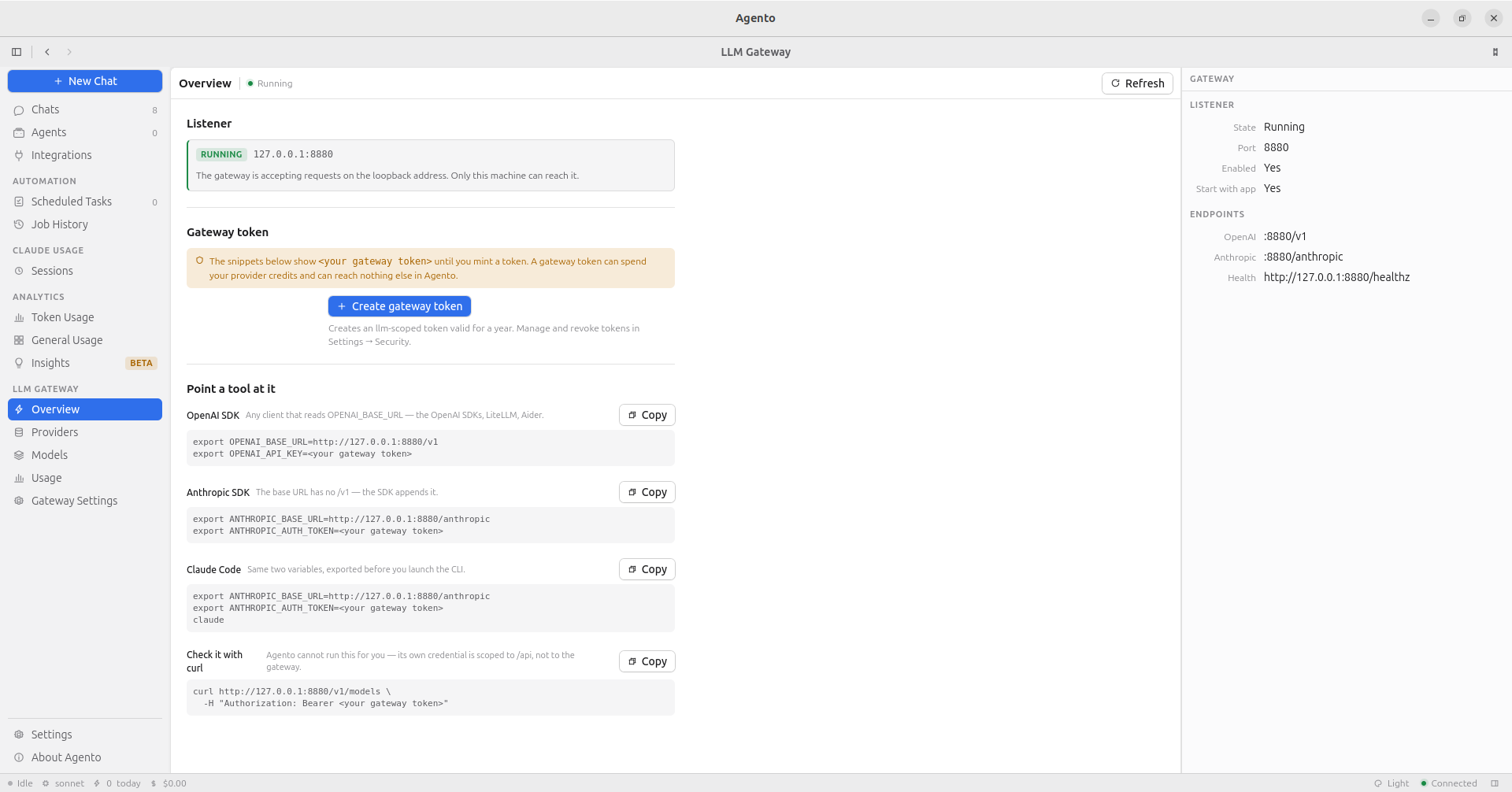
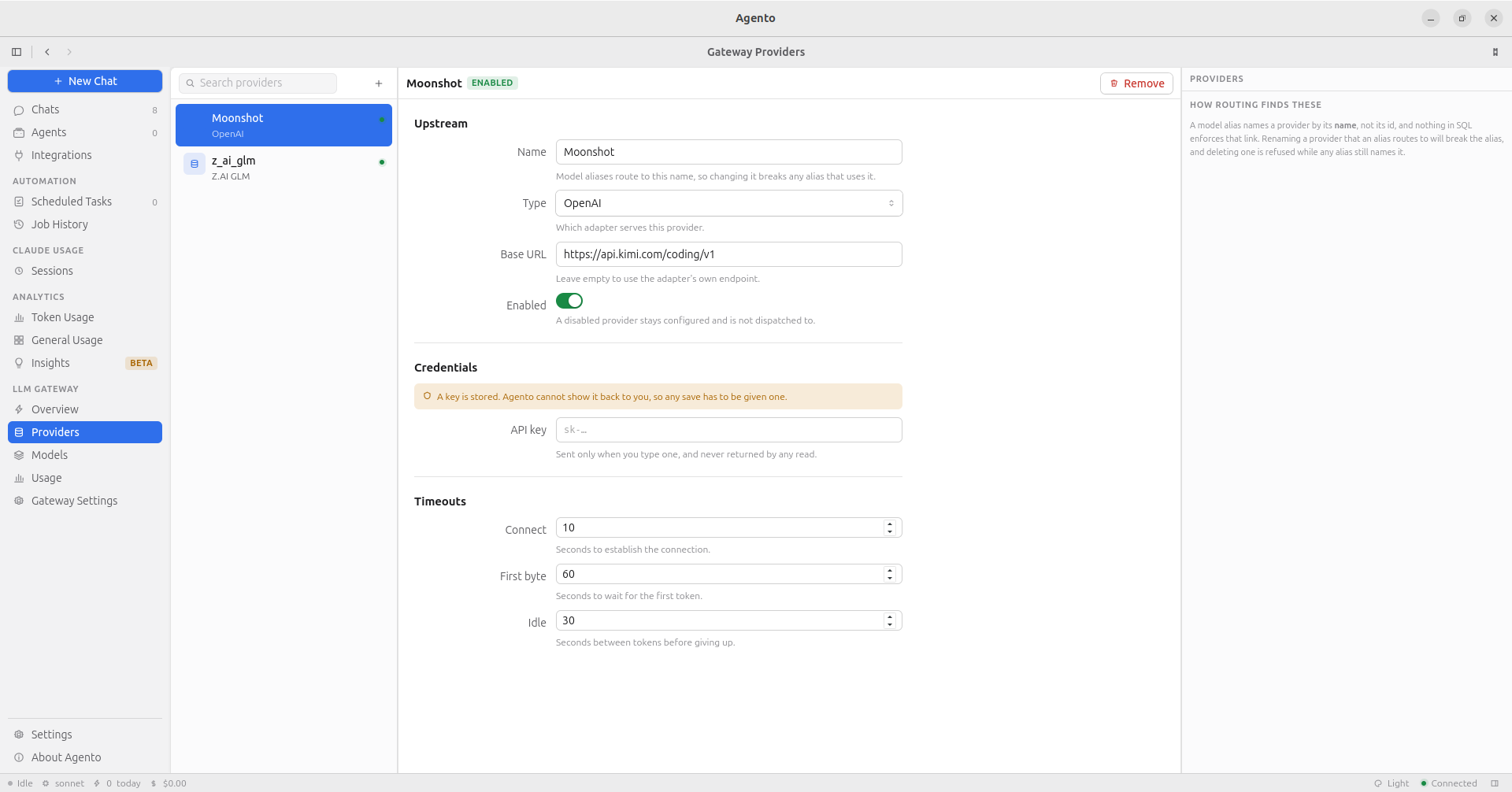
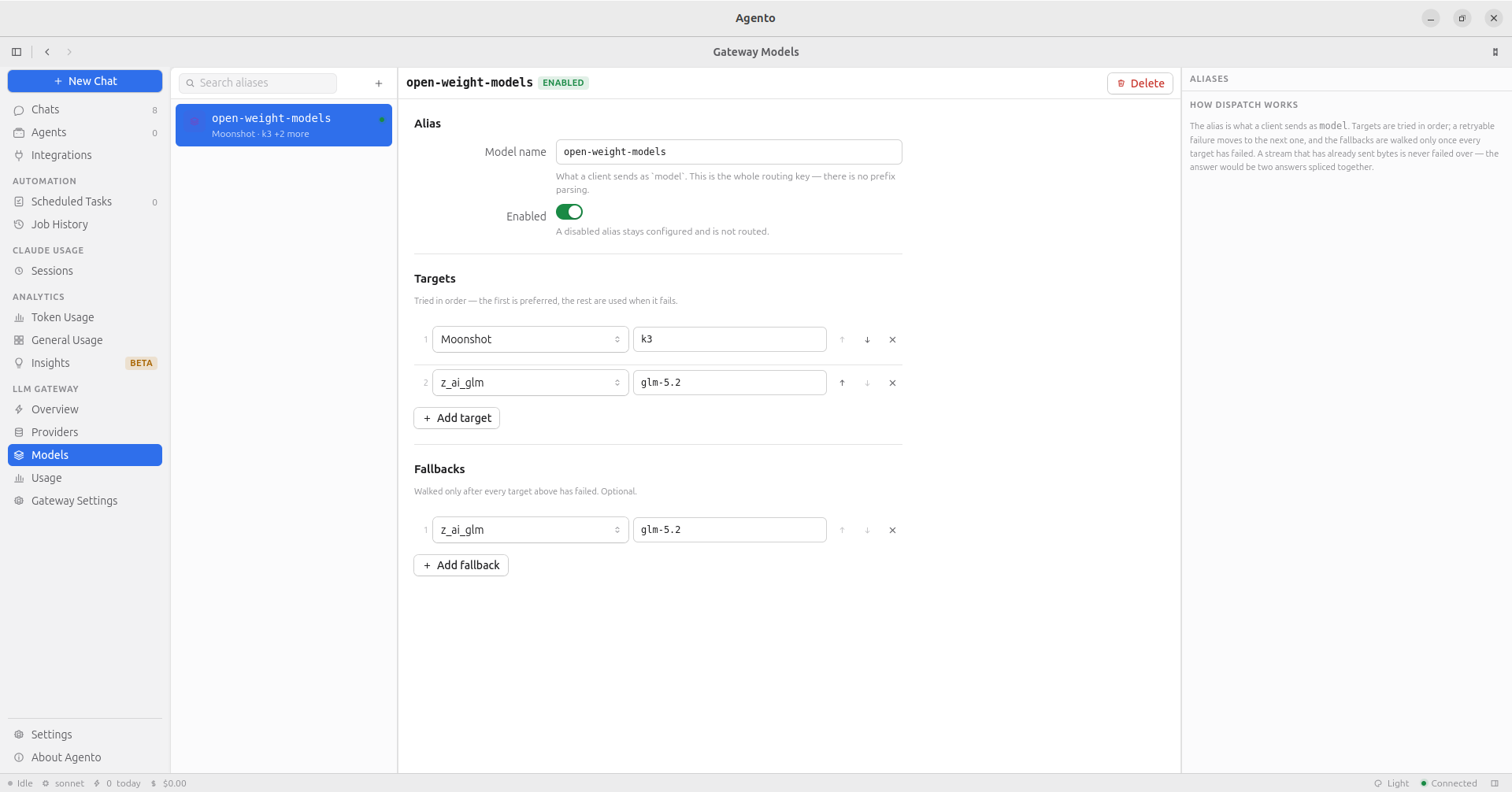
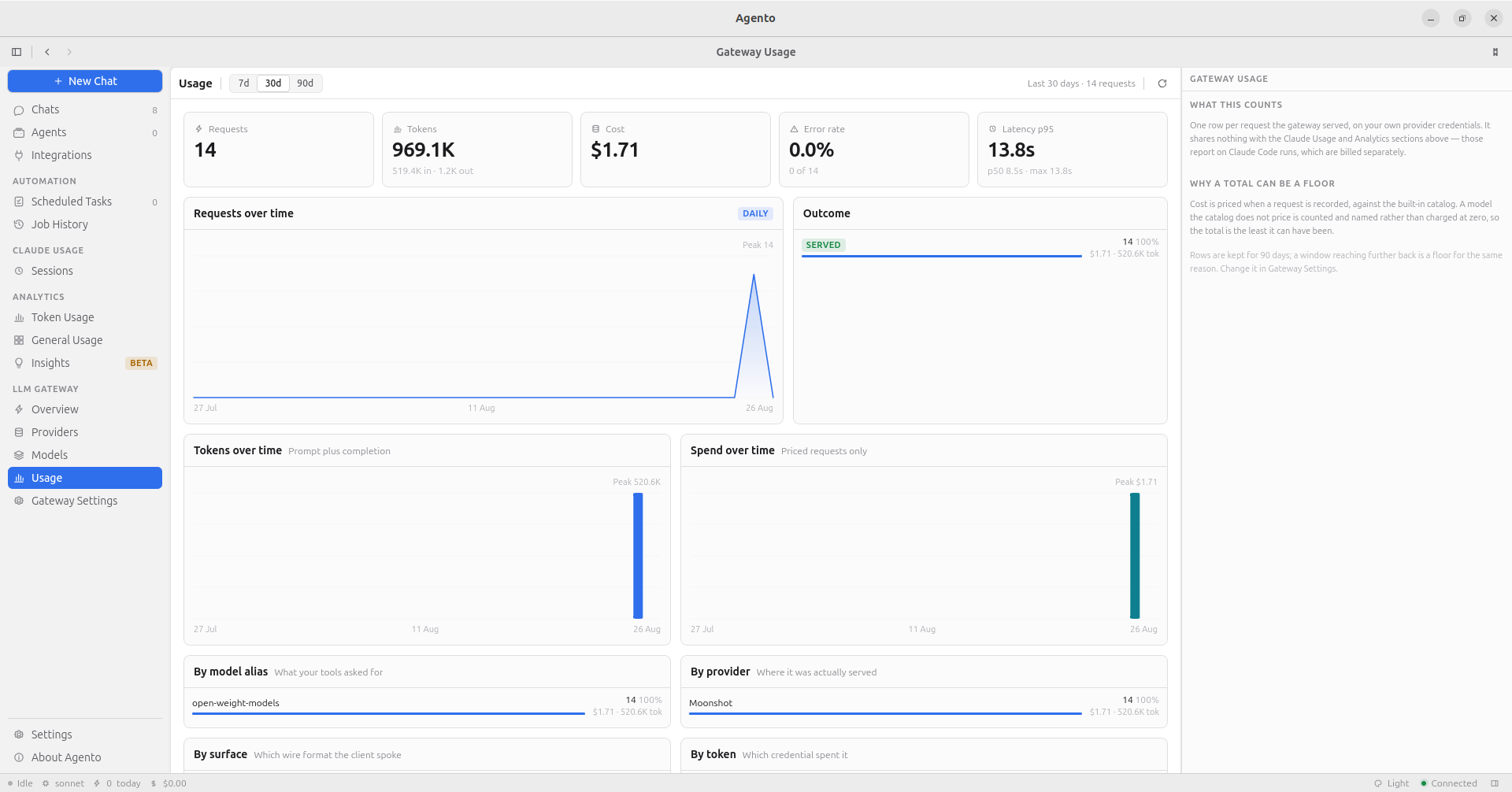
Screenshots of the five gateway views this section walks through
Overview. Listener state, the token, and the snippet for each client.
Providers. One upstream account, its adapter, base URL, key and timeouts.
Models. The alias, its ordered targets and its fallbacks.
Usage. One row per served request, aggregated.
Gateway Settings. The switch, the port, and the retention horizon.
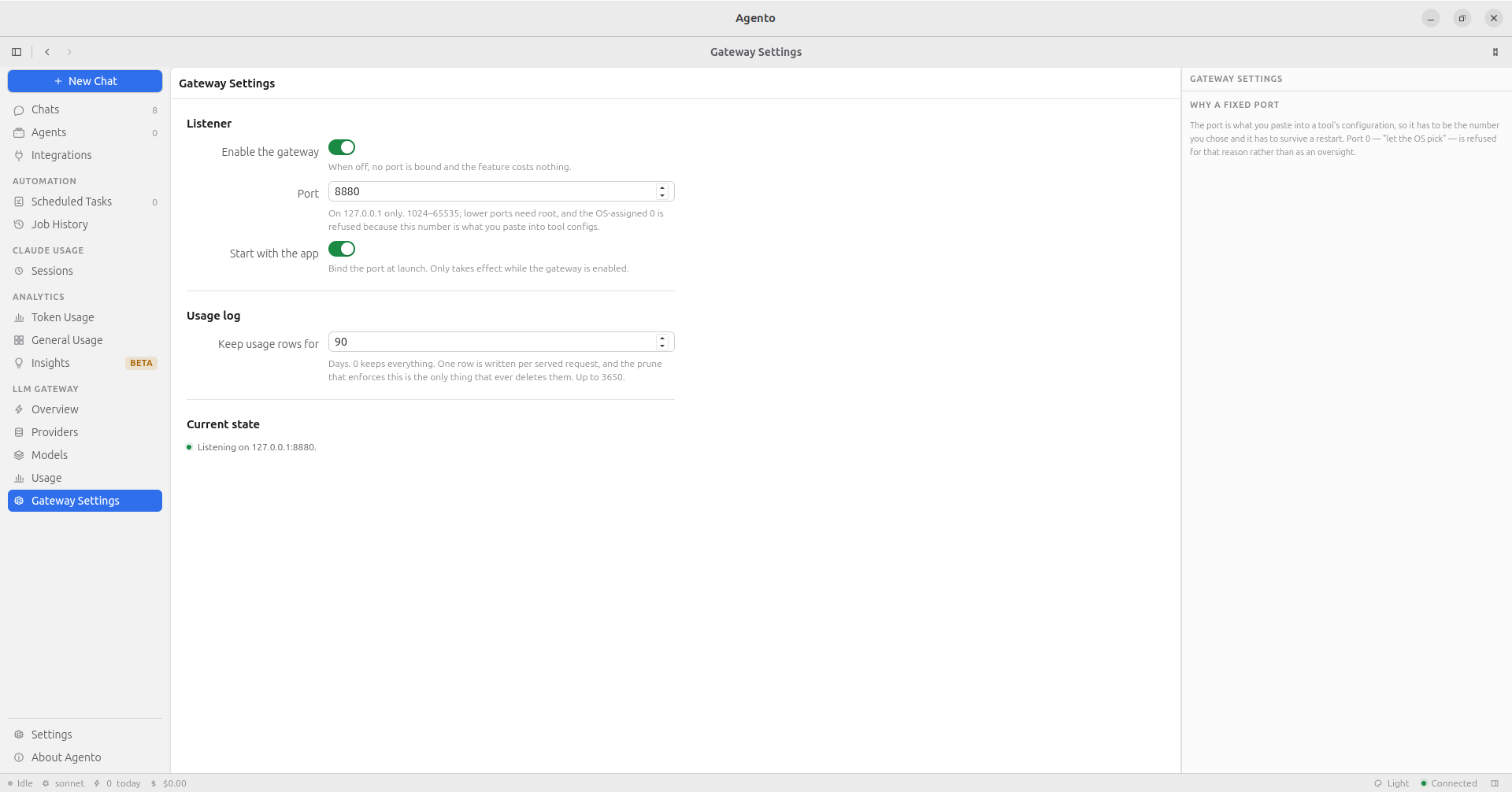
Turning it on
Section titled “Turning it on”Both switches need something to route first. A gateway with no provider, or with a provider and no alias, binds a port that fails to route every model name a client sends — so Enable the gateway and Start with the app stay shut until at least one provider and at least one alias exist. Until they do, the view says which of the two is missing and links straight to it. Add them (below), come back, and the switches are live — no restart.
LLM Gateway → Gateway Settings, under Listener:
- Enable the gateway. Off by default. When off, no port is bound.
- Port, 8880 by default, and between 1024 and 65535. This is the number you
paste into tool configs, so Agento will not accept
0and take an OS-assigned one, and it will not accept a port below 1024, which would need root. - Start with the app. On by default, and only meaningful while the gateway is enabled. Without it the port dies with every restart, which is not much of a gateway.
If the port is already taken, the form says so before you save — “Port 8880
is already in use by another process. Port 8881 is free.” — with a button that
fills the free one in. It is never applied for you: the port is what you paste
into OPENAI_BASE_URL and ANTHROPIC_BASE_URL, so a value that changed itself
would point every tool you had already configured at nothing. The check is also
advisory, not a reservation — something can still take the port between the
check and the save, which is what Overview is for.
Changing the port restarts the listener, and anything already configured against the old one stops working until you update it. The view says so before you save.
Overview shows whether the listener is actually up: Running, Stopped, Port unavailable or Failed to start.
Adding a provider
Section titled “Adding a provider”LLM Gateway → Providers → +. A provider is one upstream account.
- Name — how aliases refer to this provider. Renaming it breaks every alias that routes to it.
- Type — Anthropic, OpenAI, Google Gemini or Z.AI GLM. This picks the adapter.
- Base URL — leave empty for the provider’s own endpoint. GLM requires one.
- API key — yours. It is never returned by any read, so a provider that has
one shows
••••••••••• storedrather than the value. That is deliberate rather than a bug: no read can echo it, so nothing can leak it back through the UI. Editing anything else does not need it. Leave the field alone and the save sends no key at all, which the server reads as “keep the stored one”; use Replace key when you actually want to change it. - Timeouts — connect, first byte, and idle between tokens.
A disabled provider stays configured and is not dispatched to.
Checking the credentials before you save
Section titled “Checking the credentials before you save”Check these credentials asks the provider to list its models. That authenticates exactly what an inference request would, costs nothing and generates no tokens — and it is the only way to tell a working provider from a broken one without routing a real request through the gateway and reading the failure inside whichever tool sent it.
You do not have to re-type the key to run it: leave the field alone and it checks the one already stored.
Four verdicts:
| verdict | what it means | what to do |
|---|---|---|
| Working | the provider accepted the key, and lists these models | save |
| Key refused | 401 or 403 — the key is wrong, revoked, or out of credit |
re-issue the key |
| Unreachable | nothing answered, or the base URL is not this provider’s API root | check the Base URL |
| Unexpected | it answered something else — the status is shown | check the provider’s status page |
Save anyway is always available beside Save, and it is there for a real case: a proxy, a self-hosted server or an OpenAI-compatible vendor may implement completions and no model list, so it can never produce a green verdict while working perfectly. A check is a help, not a gate you can be locked behind.
Defining an alias
Section titled “Defining an alias”LLM Gateway → Models → +. An alias is the name your tools ask for.
- Model name — exactly what the client sends as
model. This is the whole routing key; there is no prefix parsing and no pattern matching. - Targets — a provider plus that provider’s own model id. The order is the meaning: the first is preferred, and each one after it is tried when the one before fails.
- Fallbacks — walked only after every target has failed.
Pick a provider on a target row and the model box fills itself from that
provider’s own catalog — Agento asks the provider what it currently serves,
using the key you configured for it. Start typing to filter the list. The
strings are long and versioned (gpt-4o-2024-11-20, claude-sonnet-4-6,
glm-4.6) and a typo is not caught when you save it, only by a 404 the first
time something routes through the alias, so picking from the list is the way to
get it right.
Typing an id by hand still works, always. The list is a suggestion, not a constraint: a model released this morning, a fine-tune id, or anything the provider does not list is accepted and saved exactly as typed. If the catalog cannot be fetched the box falls back to a plain text field with a note saying so, and nothing about saving changes.
Failure means a timeout, a connection error, a 429, or a 5xx. A provider answering 403 is failed over to the next target without being retried, because several providers report an exhausted plan that way and asking the same one again will not help.
Getting a token
Section titled “Getting a token”The gateway does not accept your provider keys as its own credential — it has one of its own, so that a tool config holds something you can revoke without touching anything else.
LLM Gateway → Overview → Create gateway token mints one. It is an llm
token, valid for a year, and it is shown once: it is not stored anywhere and
cannot be shown again. Copy it then. While the banner is open the snippets below
it have the real token embedded, ready to copy whole.
Lost it? Mint another and revoke the old one in Settings → Security.
Pointing a tool at it
Section titled “Pointing a tool at it”Two environment variables, and the two base URLs are not the same shape:
| Client | Base URL |
|---|---|
| OpenAI SDK, LiteLLM, Aider | http://127.0.0.1:8880/v1 |
| Anthropic SDK, Claude Code | http://127.0.0.1:8880/anthropic |
The OpenAI one ends in /v1 and the Anthropic one does not. That is
because an OpenAI client takes a base URL that already includes the version
segment and appends /chat/completions to it, while the Anthropic SDK and Claude
Code append /v1/messages themselves. Writing /anthropic/v1 therefore asks for
/anthropic/v1/v1/messages, which is not a route and answers 404. This is
the single most common way to get this wrong.
OpenAI SDK:
export OPENAI_BASE_URL=http://127.0.0.1:8880/v1export OPENAI_API_KEY=<your gateway token>Anthropic SDK:
export ANTHROPIC_BASE_URL=http://127.0.0.1:8880/anthropicexport ANTHROPIC_AUTH_TOKEN=<your gateway token>Claude Code:
export ANTHROPIC_BASE_URL=http://127.0.0.1:8880/anthropicexport ANTHROPIC_AUTH_TOKEN=<your gateway token>export ANTHROPIC_MODEL=<one of your aliases>claudeThe third line matters. Without it Claude Code asks for whichever model it
defaults to, which is not one of your aliases, and it stops with “There’s an
issue with the selected model”. Either export ANTHROPIC_MODEL, or name an
alias after the model Claude Code asks for. Claude Code also warns that it does
not recognise a made-up model name and will assume a 200k context window; that
warning is its own and is harmless.
To check the listener without any of that:
curl http://127.0.0.1:8880/v1/models \ -H "Authorization: Bearer <your gateway token>"It answers with your aliases, not with a provider’s catalogue — the aliases are what this endpoint routes.
Watching usage
Section titled “Watching usage”LLM Gateway → Usage is one row per served request, broken down by alias, provider, surface, status and which token was used, with p50/p95/max latency.
Two numbers are labelled as floors rather than reported as facts:
- A model with no entry in the pricing catalogue is recorded as unpriced rather than as free, so a cost total that is missing something says so. The shipped catalogue covers Anthropic, Moonshot, Z.ai and Alibaba models, so OpenAI and Gemini traffic is unpriced until you add rates under Settings → Pricing.
- A window reaching further back than the retention horizon reports what survives, which is not everything that happened.
Keep usage rows for (Gateway Settings → Usage log) is that horizon: 90 days
by default, up to 3650, and 0 keeps everything. Shortening it deletes
anything already older, the next time the log is pruned, and usage rows are not
recoverable.
Tokens, and the one thing that revokes them all
Section titled “Tokens, and the one thing that revokes them all”Agento has three token scopes and they are not a ladder:
readandwritereach the Agento API.writeincludesread.llmreaches the gateway, and nothing else.
They are deliberately disjoint in both directions. A read or write token is
refused by the gateway with 403, and an llm token is refused everywhere in
the Agento API with 403. Neither is a bigger version of the other: a gateway
token is pasted in plain text into tool configs, where write would be arbitrary
command execution on your machine, and a credential for spending provider credits
has no business reading your chat transcripts.
Regenerating the signing key in Settings → Security revokes every token at once — the app’s own session, every API token, and every gateway token with them. Every tool you configured starts getting 401s with nothing else to tell you why, and each one needs a freshly minted token pasted in again. That is the point of the button rather than a side effect, and it is an accepted trade-off for a single-user app: one key, one blast radius. To revoke a single gateway client instead, revoke that token by name in Settings → Security.
Settings
Section titled “Settings”Ctrl , opens Settings. Nine panes.
General
Section titled “General”- Working directory: the default folder for new chats and tasks, and the folder any chat, task or rule without a working directory of its own runs in. Agento creates it if it does not exist.
- Default model: used when neither the chat nor the agent picks one.
- Public URL: not needed for anything in the app today. Telegram and Slack triggers both receive over outbound connections.
- Updates: how Agento behaves when a new version exists. See Updates.
Claude
Section titled “Claude”- Executable: where the Claude Code CLI is. Leave it blank and Agento finds
it — it asks your login shell, scans the
PATHit was launched with, and checks the usual install locations. Fill it in when that fails, which is possible on any machine and most likely on macOS, where an app launched from the Dock sees none of your shell’s environment. The pane shows what was detected and which rule found it. A change takes effect at the next launch. See Troubleshooting. - Run directory: which Claude Code configuration directory runs use by default.
- Indexed directories: which directories analytics reads. Add a second one if you use more than one Claude account, and both appear in every total.
- Settings profiles: named Claude Code settings files, managed here. Runs use the profile marked as default.
Removing a directory from the indexed list hides its sessions rather than deleting them. Adding it back is instant.
Appearance
Section titled “Appearance”Light, dark, or match the system. Also available from the status bar and the command palette.
Notifications
Section titled “Notifications”Email delivery over SMTP, and which events send one. Scheduled task outcomes are the main use. There is a test button that sends one message so you know the configuration works before you rely on it.
- Idle gap threshold: how long a pause has to be before it stops counting as working time. Between 1 and 240 minutes, 10 by default. Changing it re-reads your history in the background, because durations are stored rather than recomputed on every view.
- Keep session history: how long Agento keeps a session whose transcript Claude Code has deleted. Forever (the default), 1 year or 6 months. Only sessions whose transcript has expired are ever deleted, and the age is counted from when the session ended. A session whose transcript is still on disk is kept at any age. Choosing a shorter window tells you, before you save, that saving deletes the expired sessions already older than it, along with their sub-agents, pull-request links, insights and credential findings.
- Claude Code retention: how long Claude Code itself keeps a transcript
before deleting it, shown so you can see the number that makes sessions
expire. It is read from
cleanupPeriodDaysin thesettings.jsonof each indexed Claude config directory, one line per directory when you have several, and it is 30 days when the file does not set it. Agento changes it only when you choose to extend it in the retention notice (see Expired transcripts), and never lowers it. If asettings.jsoncannot be read, the line says which file and why. Claude Code can also take this value from managed or project settings, which Agento does not read. - Hidden projects: keep a project out of every chart and list. Its data is kept, so unhiding is immediate.
Pricing
Section titled “Pricing”The model price catalog every cost figure is computed from. It ships filled in for Anthropic, Moonshot, Z.ai and Alibaba models.
Two separate actions, on purpose:
- Add a rate when a price changes going forward. History keeps what it was charged.
- Correct a rate when the existing entry was wrong. This rewrites costs that were already reported.
Either way, your sessions are re-priced in the background afterwards. That re-pricing re-reads transcripts, so it reaches only sessions whose transcript is still on disk: a session whose transcript has expired keeps the cost it had.
Security
Section titled “Security”The API tokens this install has issued, and the key that signs them.
- Issue a token with a scope:
readorwritefor the Agento API, orllmfor the LLM Gateway. It is shown once and stored nowhere. - Revoke one by name, which stops it immediately and leaves every other token working.
- Regenerate the signing key invalidates every token at once, gateway clients included. The app window recovers by itself; nothing else does.
The app’s own log file — tail it, follow it, filter by level, and save a copy to send with a bug report. It records one line per API request and what each write did, and no message bodies, prompts or credentials.
Advanced
Section titled “Advanced”Monitoring configuration, shown read-only. Agento does not export telemetry, so
there is nothing here to change — the stored settings are displayed for
reference, along with any OTEL_* environment variables pinning them.
Privacy
Section titled “Privacy”- Everything is stored locally, in
~/.agento. - Nothing is sent to Anthropic beyond what Claude Code itself sends when an agent runs.
- Agento has no account, no telemetry and no analytics of its own.
- The only outbound network calls are the ones you asked for: agent runs, the integrations you connected, the update check (which you can switch off), and — if you enable it — the providers the LLM Gateway forwards to.
- Integration credentials and gateway provider keys are stored in plain text in
the local database. Their protection is your user account and your disk. Treat
~/.agentoas sensitive. - Your Claude Code transcripts in
~/.claudeare read only, never modified.
The website is a separate thing, and it is not the app. myagento.app loads Google Analytics through Google Tag Manager to count visits. Nothing above changes: the app has no analytics, and the site cannot see anything the app does — it is a static site on GitHub Pages that has never met your database.
Consent is asked for on your first visit and denied until you accept, in every country rather than only where a regulator requires the question. Refuse and nothing is loaded. The choice is remembered in your browser’s local storage and can be changed at any time from the Cookies link in the site footer.
Getting help
Section titled “Getting help”Something not working? Start with Troubleshooting, then open an issue at github.com/shaharia-lab/agento/issues.